Updating Personal Information
As a MyChart user, you can update your demographics anytime. This includes items such as:
- Home Address
- Home Phone
- Mobile Phone*
- Email Address*
- Preferred Name
- Marital Status
*Note: If you update your Mobile Phone or Email Address, you will be asked to validate the new information before receiving notifications.
 Carum Family Scenario: In the following scenario, Liz Carum will be updating her personal information on MyChart.
Liz has recently had some changes to her personal information (address, marital status, religion, etc.), so she needs to update this information on her MyChart account.
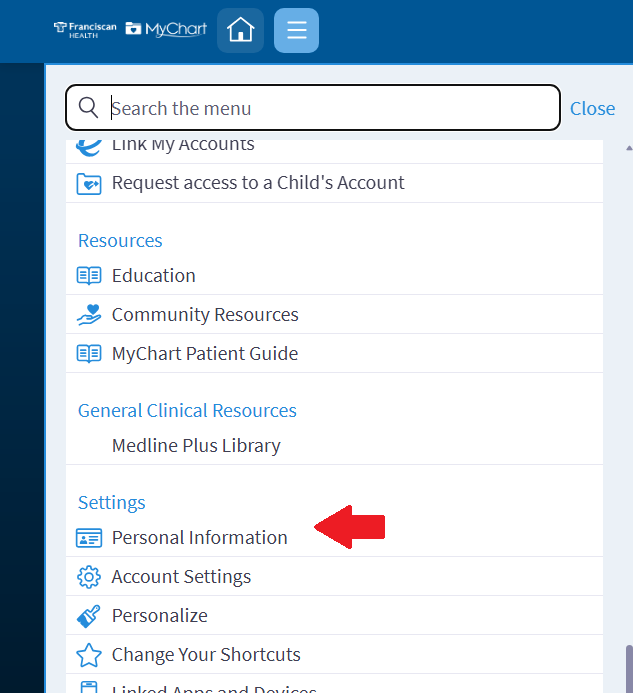
Liz starts by logging into her MyChart account and navigating to the menu. She then scrolls down and selects “Personal Information.”
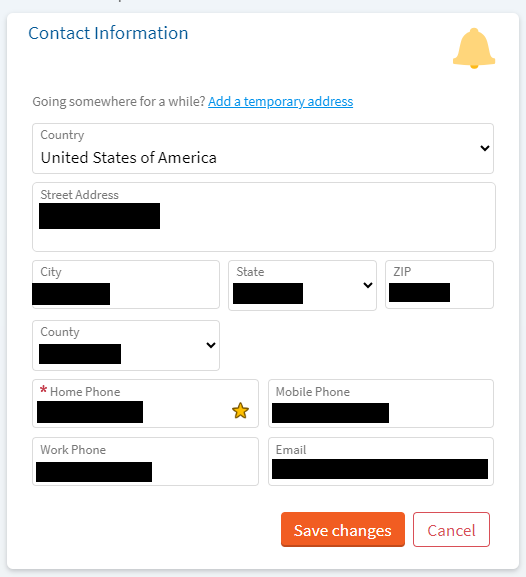
She then clicks “edit” and updates her information. When finished she clicks the “save changes” button at the bottom of the screen. Liz’s personal information has now been changed and is up to date!
-
Log into MyChart
See login options: MyChart Login
-
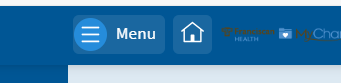
Access the Menu
Access the Menu activity from the toolbar.
-
Navigate to Personal Information
Scroll down and select “Personal Information”
-
Edit
Click the Edit link at the bottom of the section you wish to update.
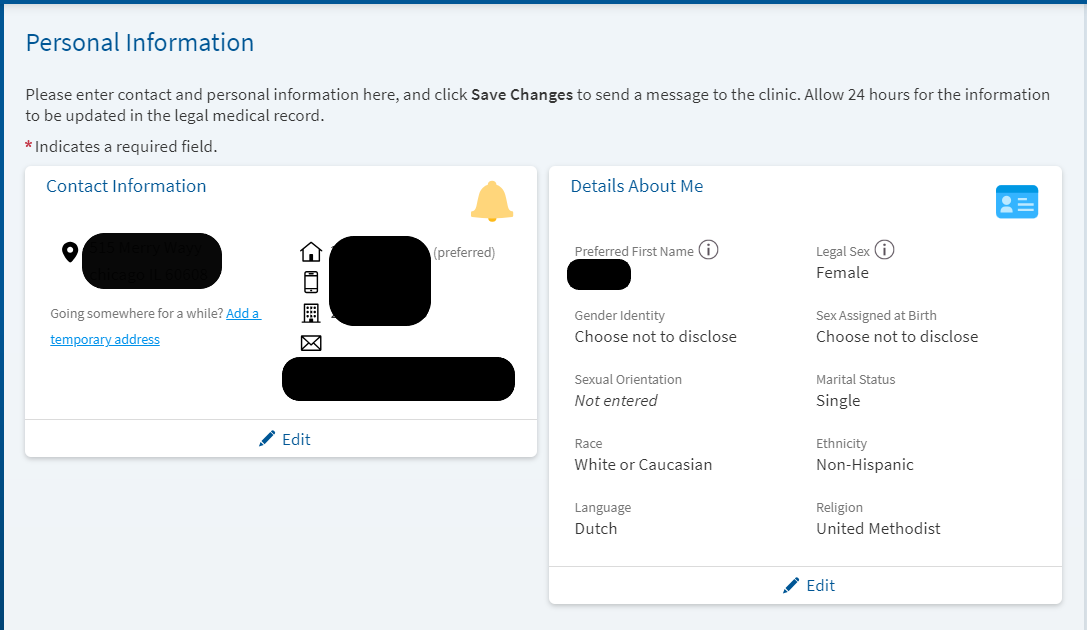
-
Make your updates.
-
Click on Save Changes
*Note: If you update your Mobile Phone or Email Address, you will be asked to validate the new information before receiving notifications.

You can make any updates and call our MyChart Support Center at 1-877-900-5741
As a MyChart user, you can update your demographics anytime. This includes items such as:
- Home Address
- Home Phone
- Mobile Phone*
- Email Address*
- Preferred Name
- Marital Status
*Note: If you update your Mobile Phone or Email Address, you will be asked to validate the new information before receiving notifications.
Carum Family Scenario: In the following scenario, Liz Carum will be updating her personal information on MyChart.
Liz has recently had some changes to her personal information (address, marital status, religion, etc.), so she needs to update this information on her MyChart account.
Liz starts by logging into her MyChart account and navigating to the menu. She then scrolls down and selects “Personal Information.”
She then clicks “edit” and updates her information. When finished she clicks the “save changes” button at the bottom of the screen. Liz’s personal information has now been changed and is up to date!
-
Log into MyChart
See login options: MyChart Login
-
Access the Menu
Access the Menu activity from the toolbar.
-
Navigate to Personal Information
Scroll down and select “Personal Information”
-
Edit
Click the Edit link at the bottom of the section you wish to update.
-
Make your updates.
-
Click on Save Changes
*Note: If you update your Mobile Phone or Email Address, you will be asked to validate the new information before receiving notifications.
You can make any updates and call our MyChart Support Center at 1-877-900-5741
Related Topics
You can choose how you want to receive certain notifications by setting your MyChart communication ...
MyChart provide tools to allow you to update your insurance coverage as needed. If you need to add ...
If your insurance coverage changes, you can remove your old insurance information. This can be ...
If your insurance coverage changes, you can add new information. This can be done at any time in ...
Give your MyChart experience a personal touch in a new way. With our Personalization features, you ...
Patients and proxies of Franciscan Alliance and its affiliates/partners can receive notifications ...