
Accepting an Invite to be a MyChart Proxy
If someone has invited you to have proxy access to their MyChart account, you will receive an email with guidance on how to accept.
NOTE: You will need your own MyChart account to complete this process. If you do not have an active MyChart account, review Setting Up a MyChart Login for Yourself (Adult)
You will need your own MyChart account to complete this process. If you do not have an active MyChart account, review Setting Up a MyChart Login for Yourself (Adult)
 Carum Family Scenario: In this scenario, Terry Carum will be our patient, and Tony Carum will be our proxy.
Tony Carum has recently been invited as a proxy to his wife’s, Terry, MyChart account. Here are the steps he can take to accept that MyChart proxy invite.
Tony is aware that this invite will expire after 30 days, so he is sure to accept the invite as soon as possible. Tony received an email containing a link to the invite, using this link Tony can log into his own MyChart account.
Tony is then asked to enter the patient’s, in this case Terry’s, date of birth.
Tony is then prompted by disclaimers, which he needs to accept in order to move forward.
Tony now has access to Terry’s account. He is sure to go to the “Menu” and search for the “Sharing Hub”, clicking on “Manage ongoing access” to ensure that Terry is now listed.
Now the invite has been accepted, and Tony is a proxy to Terry’s MyChart account!
You have 30 days to complete this process. The invite will expire after 30 days.
-
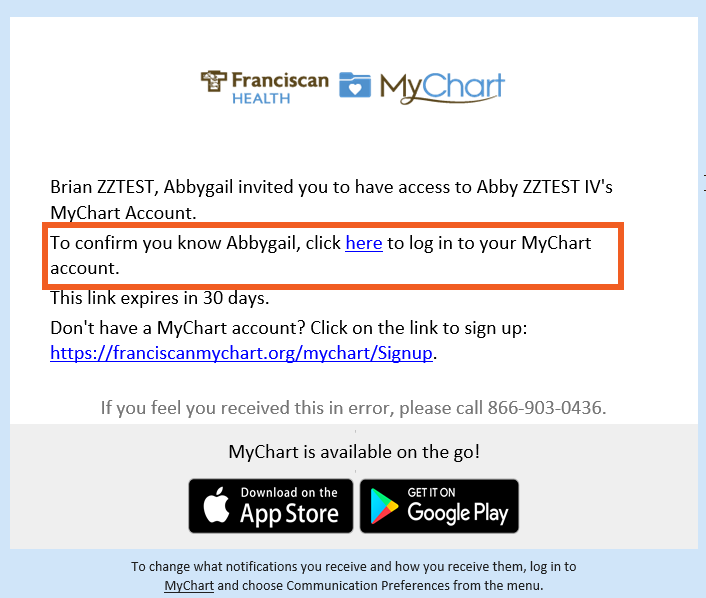
Open the email and click on the link.
Log into your email to access the invite. Click here to login into your MyChart account.
-
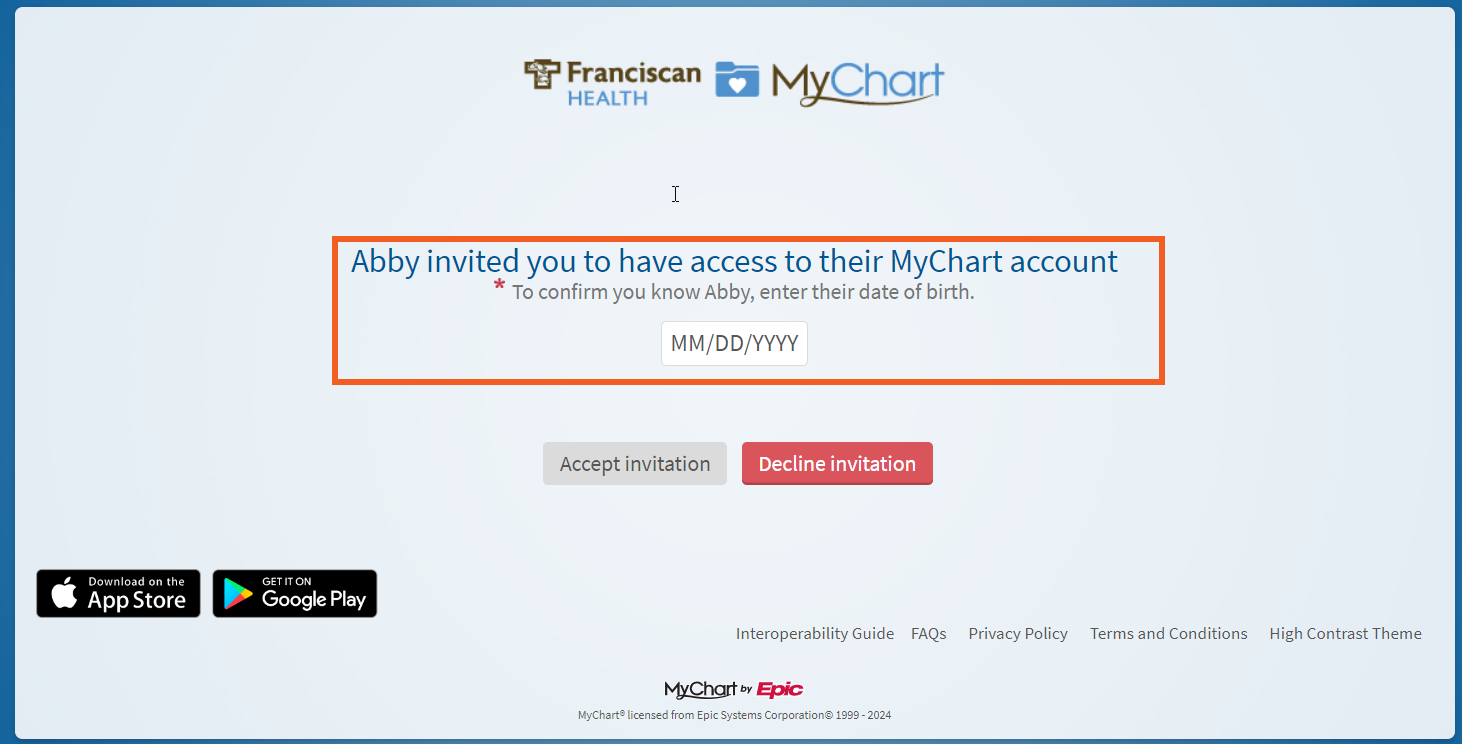
Validate the patient's identity by entering
Enter in Patient’s Date of Birth.
-
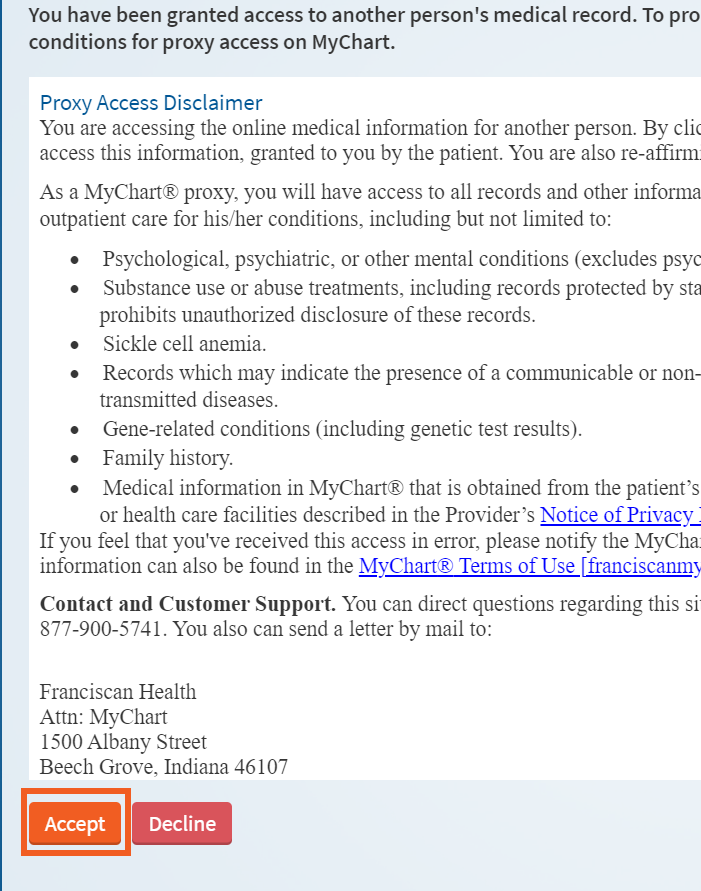
Accept Disclaimers
Accept Disclaimer to move forward.
-
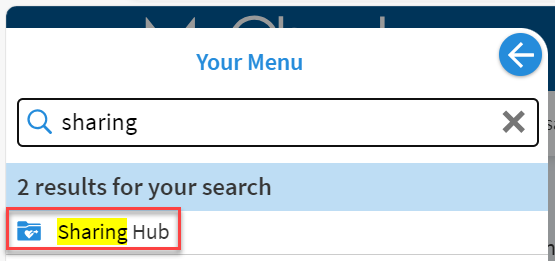
Confirm you now have proxy access.
You now have access to the Patient’s Account. To confirm this, go to Menu and search for sharing hub.
-
Select Who You Want to Share Your Information With
At the top of the Sharing Hub, you will be asked “Who do you want to share your health information with?” Be sure to select “Family member, close friend, or caretaker.”

-
Navigate to Manage ongoing access.
From here, click on “Manage ongoing access to your MyChart account.

-
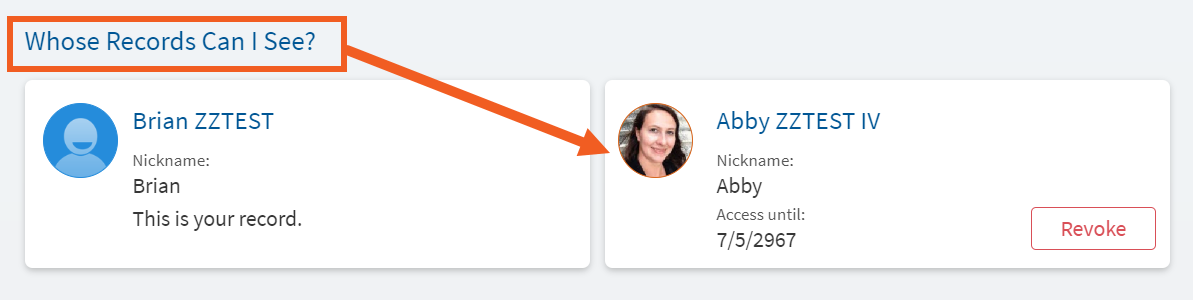
Review list of proxies.
You should now see that you have access to the patient’s chart.
If someone has invited you to have proxy access to their MyChart account, you will receive an email with guidance on how to accept.
NOTE: You will need your own MyChart account to complete this process. If you do not have an active MyChart account, review Setting Up a MyChart Login for Yourself (Adult)
You will need your own MyChart account to complete this process. If you do not have an active MyChart account, review Setting Up a MyChart Login for Yourself (Adult)
Carum Family Scenario: In this scenario, Terry Carum will be our patient, and Tony Carum will be our proxy.
Tony Carum has recently been invited as a proxy to his wife’s, Terry, MyChart account. Here are the steps he can take to accept that MyChart proxy invite.
Tony is aware that this invite will expire after 30 days, so he is sure to accept the invite as soon as possible. Tony received an email containing a link to the invite, using this link Tony can log into his own MyChart account.
Tony is then asked to enter the patient’s, in this case Terry’s, date of birth.
Tony is then prompted by disclaimers, which he needs to accept in order to move forward.
Tony now has access to Terry’s account. He is sure to go to the “Menu” and search for the “Sharing Hub”, clicking on “Manage ongoing access” to ensure that Terry is now listed.
Now the invite has been accepted, and Tony is a proxy to Terry’s MyChart account!
You have 30 days to complete this process. The invite will expire after 30 days.
-
Open the email and click on the link.
Log into your email to access the invite. Click here to login into your MyChart account.
-
Validate the patient's identity by entering
Enter in Patient’s Date of Birth.
-
Accept Disclaimers
Accept Disclaimer to move forward.
-
Confirm you now have proxy access.
You now have access to the Patient’s Account. To confirm this, go to Menu and search for sharing hub.
-
Select Who You Want to Share Your Information With
At the top of the Sharing Hub, you will be asked “Who do you want to share your health information with?” Be sure to select “Family member, close friend, or caretaker.”
-
Navigate to Manage ongoing access.
From here, click on “Manage ongoing access to your MyChart account.
-
Review list of proxies.
You should now see that you have access to the patient’s chart.