Capture and Send a Document through Messages
Step by step instructions on how to take a photo or upload a document and send it to your care teams using a MyChart message.
-
Log into MyChart
For more information and instructions on how to log in, please review Log Into MyChart
-
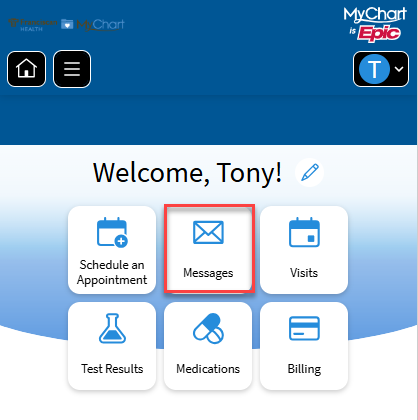
Navigate to Message Center
Access Message Center by clicking on Messages
-
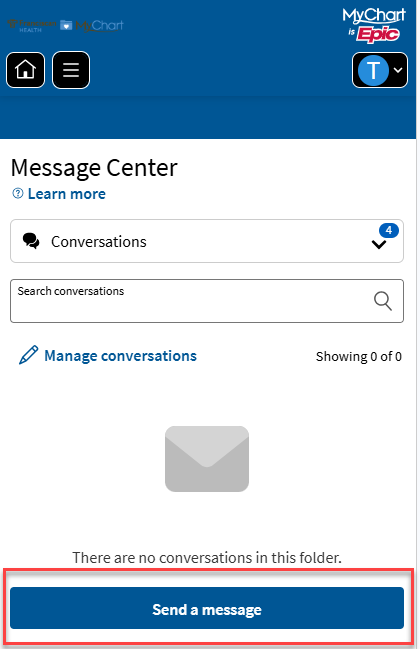
Select "Send a message"
Select “Send a message“
-
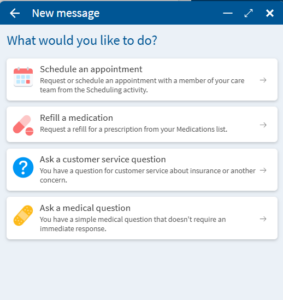
Select a Message Type
1. Click “Ask a medical question”
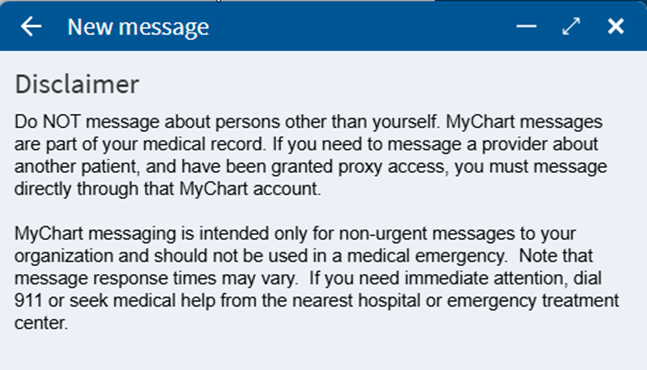
2. Review the medical question disclaimer and select Next to continue. Please note:
- Do NOT message about persons other than yourself. Should you need to message regarding another patient, this must be done from the patient’s own MyChart account.
- MyChart messaging is intended for Non-Urgent communication. Response times may vary.
- For medical emergencies, please dial 911 or seek help from the nearest hospital or emergency treatment center.
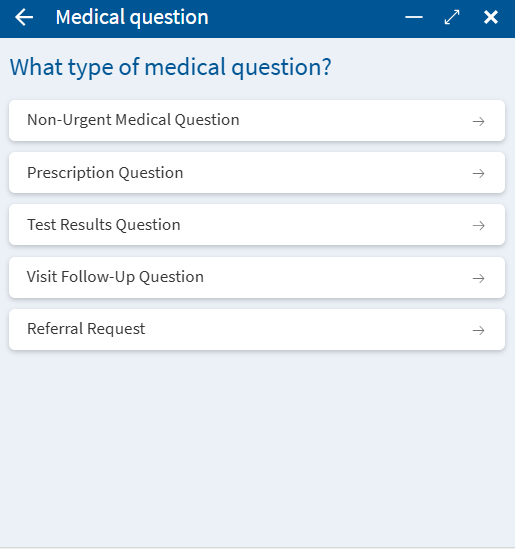
3. Select the most appropriate topic from the list.
4. A list of providers that are currently established with you will be available (the recipient of your message). Select the appropriate provider from the list to start your message.
-
Compile your message
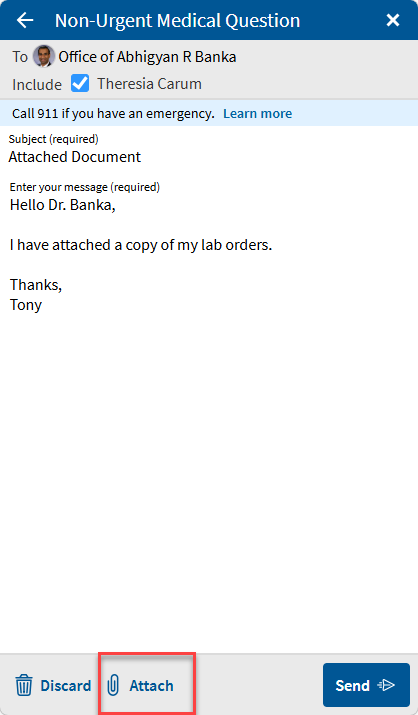
Enter a subject and type your message.
Select Attach (paperclip icon)
-
Attach your document
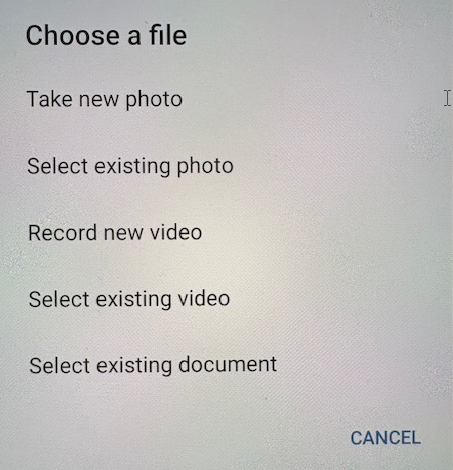
Choose how you want to add your document:
Take new photo – Use your camera to take a new picture of the document
Select an existing photo– If you already have a photo of the document, choose the photo from your device’s photo library
Select existing document– Select a file saved on your device
**If prompted, you will need to grant MyChart permission to access your camera, photo, or files.
-
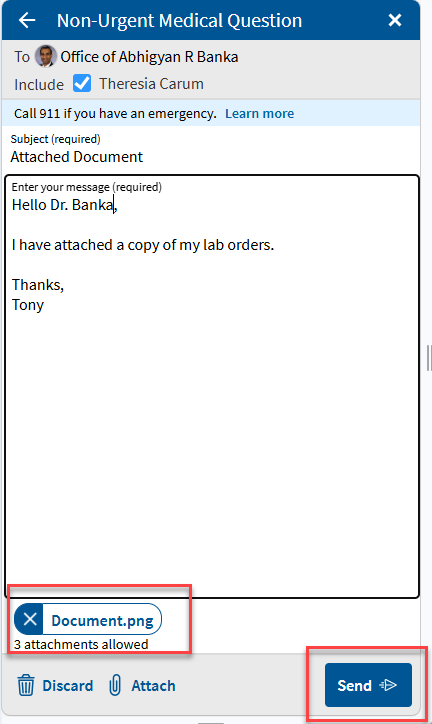
Review and send
Confirm your document has been attached to the message.
Select Send.
Step by step instructions on how to take a photo or upload a document and send it to your care teams using a MyChart message.
-
Log into MyChart
For more information and instructions on how to log in, please review Log Into MyChart
-
Navigate to Message Center
Access Message Center by clicking on Messages
-
Select "Send a message"
Select “Send a message“
-
Select a Message Type
1. Click “Ask a medical question”
2. Review the medical question disclaimer and select Next to continue. Please note:
- Do NOT message about persons other than yourself. Should you need to message regarding another patient, this must be done from the patient’s own MyChart account.
- MyChart messaging is intended for Non-Urgent communication. Response times may vary.
- For medical emergencies, please dial 911 or seek help from the nearest hospital or emergency treatment center.
3. Select the most appropriate topic from the list.
4. A list of providers that are currently established with you will be available (the recipient of your message). Select the appropriate provider from the list to start your message.
-
Compile your message
Enter a subject and type your message.
Select Attach (paperclip icon)
-
Attach your document
Choose how you want to add your document:
Take new photo – Use your camera to take a new picture of the document
Select an existing photo– If you already have a photo of the document, choose the photo from your device’s photo library
Select existing document– Select a file saved on your device
**If prompted, you will need to grant MyChart permission to access your camera, photo, or files.
-
Review and send
Confirm your document has been attached to the message.
Select Send.