Starting on July 12, 2026, you will be able to access MyChart Bedside for the ED directly through your web browser, giving you convenient access without requiring the MyChart app to be downloaded on your device. This new option makes it even easier to stay informed and connected during your visit.
When you sign in to MyChart through a browser while being seen in the ED, you will automatically be directed to the MyChart Bedside for the ED experience. There, you can view the same information and complete the same actions currently available in the mobile app, helping you stay up to date throughout your care.
Here is an example of how this will appear in the web browser:
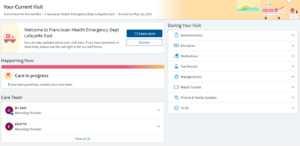
*If you already use the MyChart app on your device, your experience will remain the same. You will continue to be automatically directed to MyChart Bedside for the ED within the app during your ED visit.
Learn MoreIf you’re having trouble logging in to MyChart, this article provides clear steps to recover your username or reset your password. Following these instructions will help you regain access to your account and continue managing your health information, appointments, test results, and messages with your care team.
Learn MoreWhen you log in to MyChart using two-step verification, you may see an option called “Trust This Device.” This lets you skip the extra login code on your personal device (like your phone or home computer) for up to 90 days. It’s a safe way to make signing in quicker and easier on devices you use often.
Important: Only choose “Trust This Device” on devices you are the sole user on. Don’t use it on shared or public computers, like at work or a library.
You’ll also have the option to review or remove any devices you’ve trusted. This is helpful if you get a new phone, share a device with someone else, or just want to update your security settings.
Learn MoreMyChart Bedside gives you and your loved ones more information about your hospital or ED visit. You can use MyChart Bedside on a Franciscan-provided tablet (if available in the department) or with the MyChart app on your smartphone.
Note: The availability of features may vary depending on the care setting and whether you are using a Franciscan-provided tablet or your own smartphone.
Here are some of the features MyChart Bedside has to offer:
Check out these additional topics for more information on MyChart Bedside.
Give your MyChart experience a personal touch in a new way. With our Personalization features, you and your proxies can customize your MyChart profile that includes:
There are also additional personalized information options you can update. Whether you’re navigating your own health or supporting loved ones as a proxy, personalization makes MyChart feel more familiar, accessible, and organized.
*Note: Photo must be of the patient’s face. The photo will appear in your medical record as a form of identity validation. A photo that contain other individuals, pets, or are inappropriate in nature will be removed.
Learn MoreFollow the steps here to log in to MyChart on a computer.
If you want instructions on logging into Mychart on a Smartphone or Tablet, please review Log Into MyChart on a Smartphone/Tablet
Learn MoreFollow the steps here to log in to MyChart on your smartphone or tablet.
If you want instructions on logging into MyChart on a computer, please review Log Into MyChart on a Computer
Learn MoreThis guide shows you how to turn on Two- Step Verification (also known as Two-Factor Authentication) in MyChart before it becomes required on July 13th, 2025. Setting it up early means you’ll be ready to go and won’t have any issues signing in when the change goes live.
Learn MoreYou can access your MyChart account from your smartphone or tablet (Apple or Android). The app has all of the same features available on the web version.
Apple App Store Google Play Store


You can choose how you want to receive certain notifications by setting your MyChart communication preferences. Depending on the nature of the message, you can choose to receive it via text message, email, phone calls, and/or push notifications from the MyChart app.
Learn MoreLog into MyChart and from the left menu, go to the Preferences section and select the appropriate option.
Try following the instructions found here: Forgot Login Information
To protect your health information, your MyChart account will lock after five incorrect login attempts. To have your account unlocked and for assistance resetting your password, please call the MyChart Support Center at 1-877-900-5741.
Try following the instructions found here: Forgot Login Information
Try following the instructions found here: Forgot Login Information