
Scheduling an Appointment in MyChart
You can self-schedule certain appointments with your established Care Team via MyChart.
NOTE: Not all providers or services participate in online scheduling. If you do not see the option to schedule or manage your appointments, please contact the office or department directly.
 Carum Family Scenario: In the following scenario, Frank Carum will be scheduling an appointment for himself
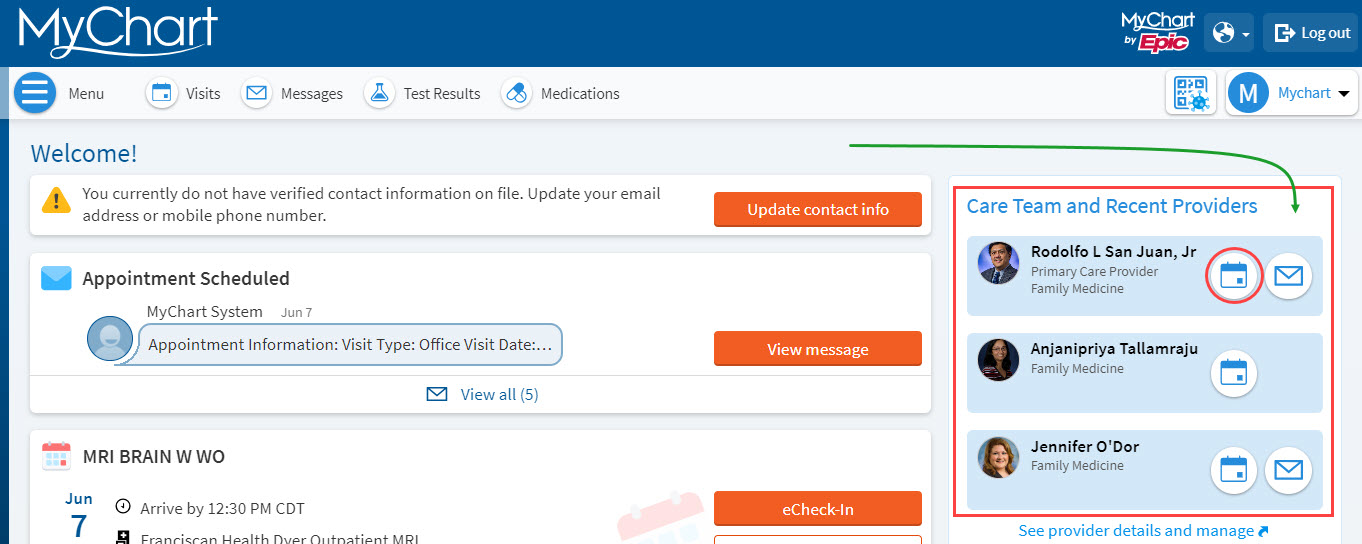
Frank starts by logging into MyChart and chooses a provider from the list to the right of his screen.
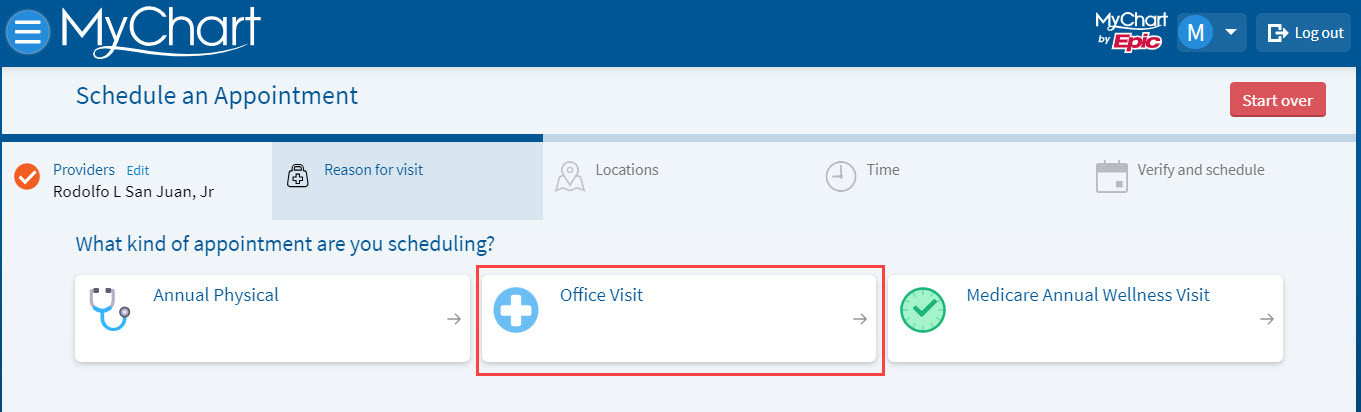
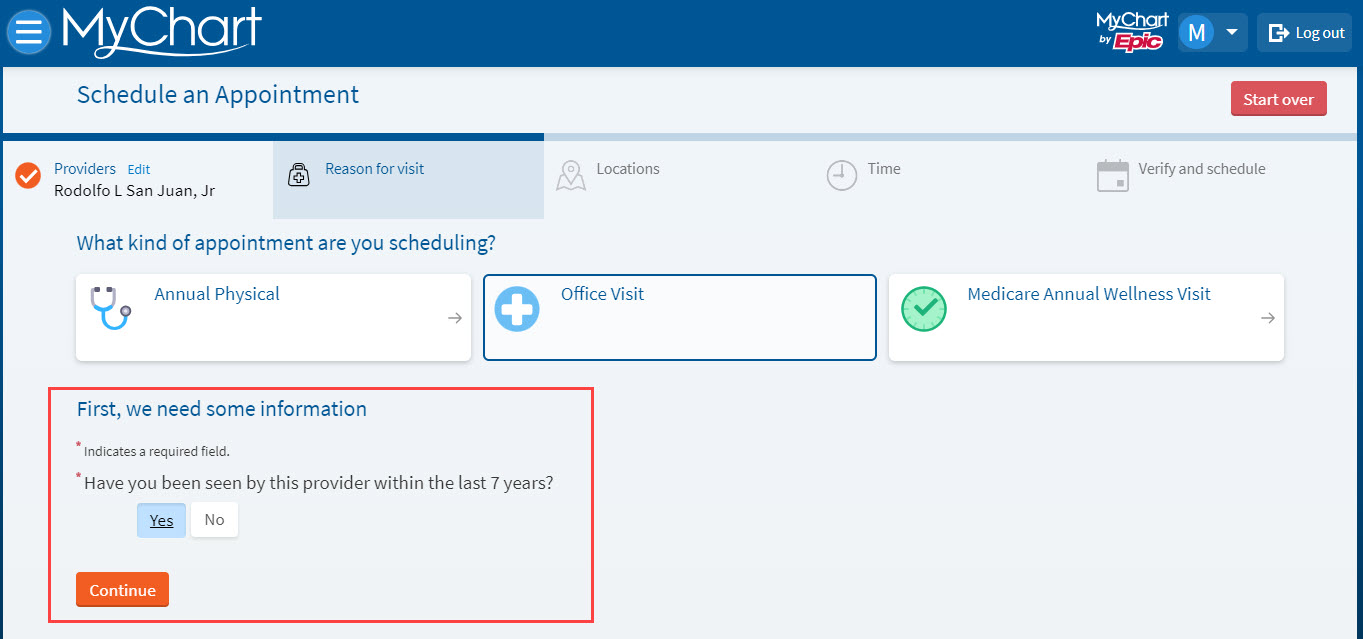
Frank then states his reason for scheduling and answers any other follow up questions. When he is done answering, he clicks “continue.”
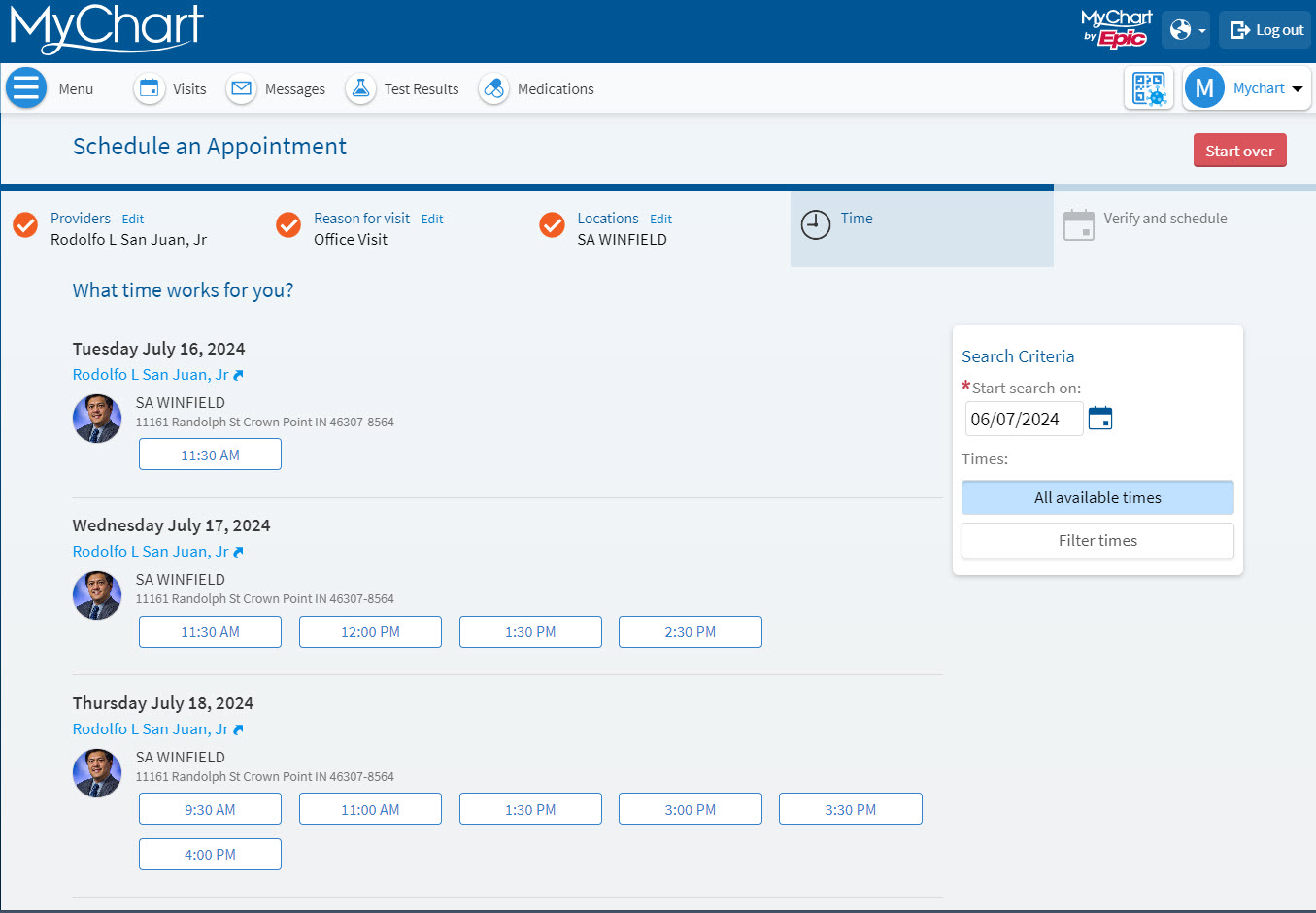
He then chooses an available date and time from his providers list that works best with his schedule.
After selecting the date and time he desires, he then explains his reason for the visit.
Frank then officially schedules his appointment by selecting “Schedule It.” Once that is done, the scheduled appointment will now show up on Frank’s MyChart account.
-
Log into MyChart
See login options: MyChart Login
-
Choosing a Provider
Scheduling from your MyChart account can only be performed with Providers that you have previously seen or are part of your current Care Team.
These Providers can quickly be identified on the right side of the MyChart home screen, under Care Team and Recent Providers. Select the schedule icon (calendar) to begin the MyChart scheduling process.
-
Reason for Appointment
After selecting the schedule icon next to your desired Provider, please select the most appropriate reason for scheduling. Please note that this may vary by Provider.
-
Answer Any Follow-Up Questions
Should the selected reason for visit have any follow-up questions, please answer and ensure accuracy. Select Continue to move forward and answer all questions prompted.
-
Scheduling Your Appointment Date and Time
After completing the necessary questions, availability to schedule an appointment with your Provider will appear.
Please select the desired date and time for your appointment.
Should you want to schedule farther into the future, update the Start Search On field. You can also scroll down to see additional appointment openings and select Show More Appointment Times to see additional scheduling solutions.
-
Reason for Scheduling
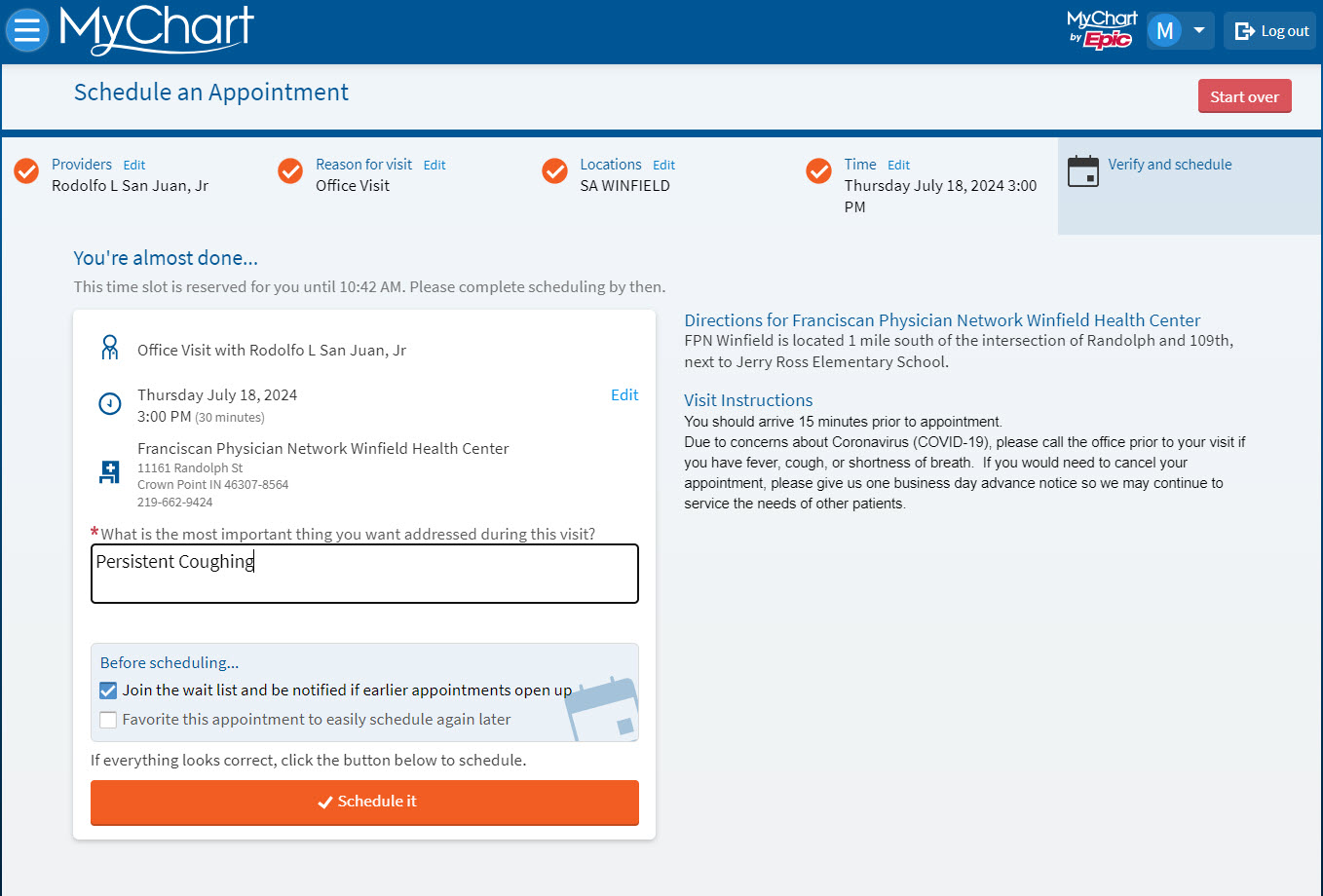
After selecting a date and time, patients will need to input a description of why they are scheduling this appointment, in this example “Persistent Coughing” has been listed as the item that the patient would like addressed during their visit.
-
Finalize Your Appointment
To complete the scheduling process within MyChart and finalize your appointment, select Schedule It. Please note that until Schedule It is selected, the appointment is not finalized.
-
Confirmation of Appointment
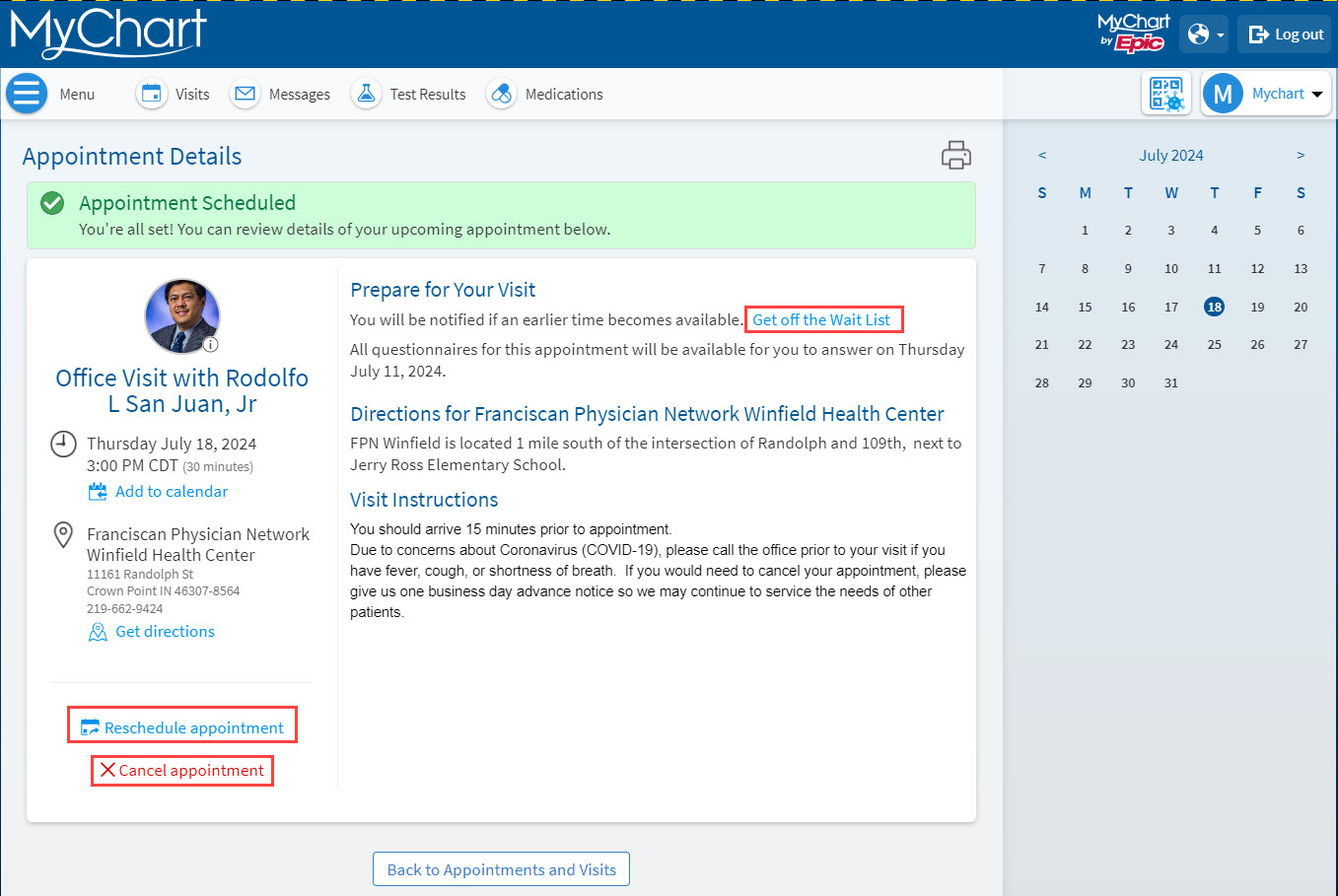
Appointments that have been successfully scheduled in MyChart will always end on the Appointment Details screen.
This page contains a summary of the appointment you have just scheduled: the Provider, Department, and Date/Time. Additional functions, such as: Reschedule, Cancel, or Add/ Remove from the Wait List are also available on this screen.
Not all Providers are available to schedule within MyChart. Patient may have to call in to the office to schedule with a Provider if they are unable to locate their Provider within their MyChart account.
Solutions appear within MyChart based on provider availability. If a provider’s schedule is currently booked-out or filled, it is best to call in to the office to schedule an appointment. For Franciscan Health provider, call 1-877-900-5741
You can self-schedule certain appointments with your established Care Team via MyChart.
NOTE: Not all providers or services participate in online scheduling. If you do not see the option to schedule or manage your appointments, please contact the office or department directly.
Carum Family Scenario: In the following scenario, Frank Carum will be scheduling an appointment for himself
Frank starts by logging into MyChart and chooses a provider from the list to the right of his screen.
Frank then states his reason for scheduling and answers any other follow up questions. When he is done answering, he clicks “continue.”
He then chooses an available date and time from his providers list that works best with his schedule.
After selecting the date and time he desires, he then explains his reason for the visit.
Frank then officially schedules his appointment by selecting “Schedule It.” Once that is done, the scheduled appointment will now show up on Frank’s MyChart account.
-
Log into MyChart
See login options: MyChart Login
-
Choosing a Provider
Scheduling from your MyChart account can only be performed with Providers that you have previously seen or are part of your current Care Team.
These Providers can quickly be identified on the right side of the MyChart home screen, under Care Team and Recent Providers. Select the schedule icon (calendar) to begin the MyChart scheduling process.
-
Reason for Appointment
After selecting the schedule icon next to your desired Provider, please select the most appropriate reason for scheduling. Please note that this may vary by Provider.
-
Answer Any Follow-Up Questions
Should the selected reason for visit have any follow-up questions, please answer and ensure accuracy. Select Continue to move forward and answer all questions prompted.
-
Scheduling Your Appointment Date and Time
After completing the necessary questions, availability to schedule an appointment with your Provider will appear.
Please select the desired date and time for your appointment.
Should you want to schedule farther into the future, update the Start Search On field. You can also scroll down to see additional appointment openings and select Show More Appointment Times to see additional scheduling solutions.
-
Reason for Scheduling
After selecting a date and time, patients will need to input a description of why they are scheduling this appointment, in this example “Persistent Coughing” has been listed as the item that the patient would like addressed during their visit.
-
Finalize Your Appointment
To complete the scheduling process within MyChart and finalize your appointment, select Schedule It. Please note that until Schedule It is selected, the appointment is not finalized.
-
Confirmation of Appointment
Appointments that have been successfully scheduled in MyChart will always end on the Appointment Details screen.
This page contains a summary of the appointment you have just scheduled: the Provider, Department, and Date/Time. Additional functions, such as: Reschedule, Cancel, or Add/ Remove from the Wait List are also available on this screen.
Not all Providers are available to schedule within MyChart. Patient may have to call in to the office to schedule with a Provider if they are unable to locate their Provider within their MyChart account.
Solutions appear within MyChart based on provider availability. If a provider’s schedule is currently booked-out or filled, it is best to call in to the office to schedule an appointment. For Franciscan Health provider, call 1-877-900-5741
Related Topics
You can Cancel and Reschedule certain appointments in MyChart. Note: For certain appointments you ...
MyChart offers tools to help you manage your scheduled appointments. NOTE: Not all providers or ...