Pay Using Apple Pay
Franciscan Health and its affiliates are now able to accept Apple Pay as payment option in MyChart. Follow the steps to learn how.
NOTE: This option will only be visible on an Apple device with Apple Pay set up.
-
Log into MyChart
For more information and instructions on how to log in, please review Log Into MyChart
-
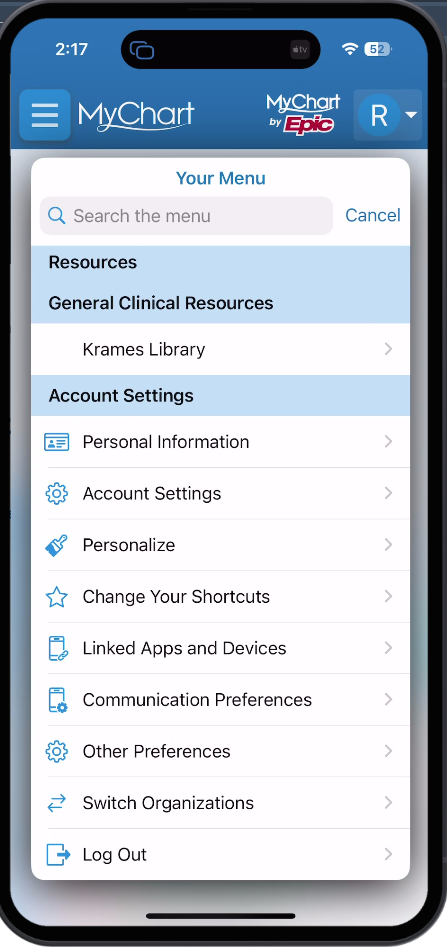
Go to Menu > Billing
Click on the Menu button (three lines at the top left). Search for Billing.
-
Select Pay Now
If you have a balance, select “Pay Now”

-
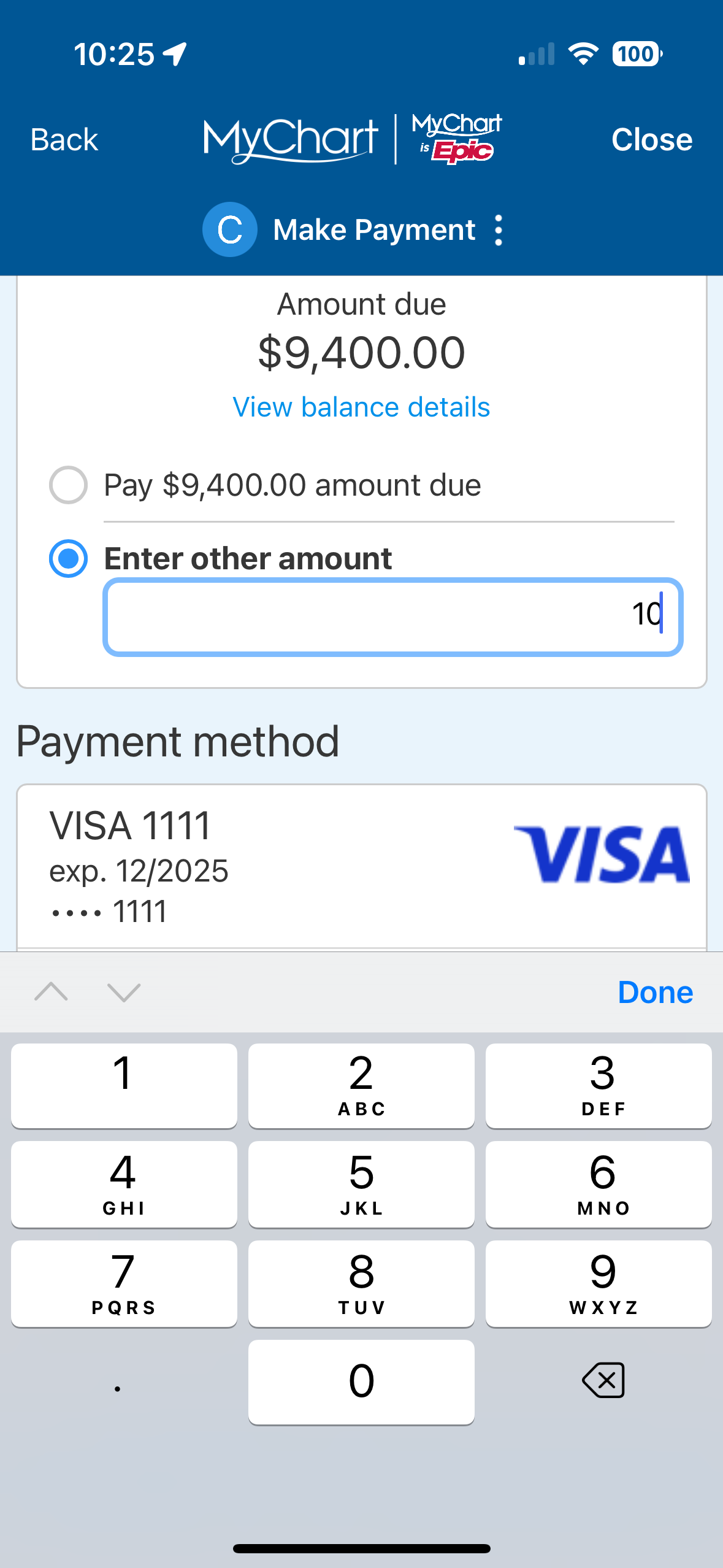
Select Amount
You can either chose to pay the full amount or enter a custom amount to pay.
-
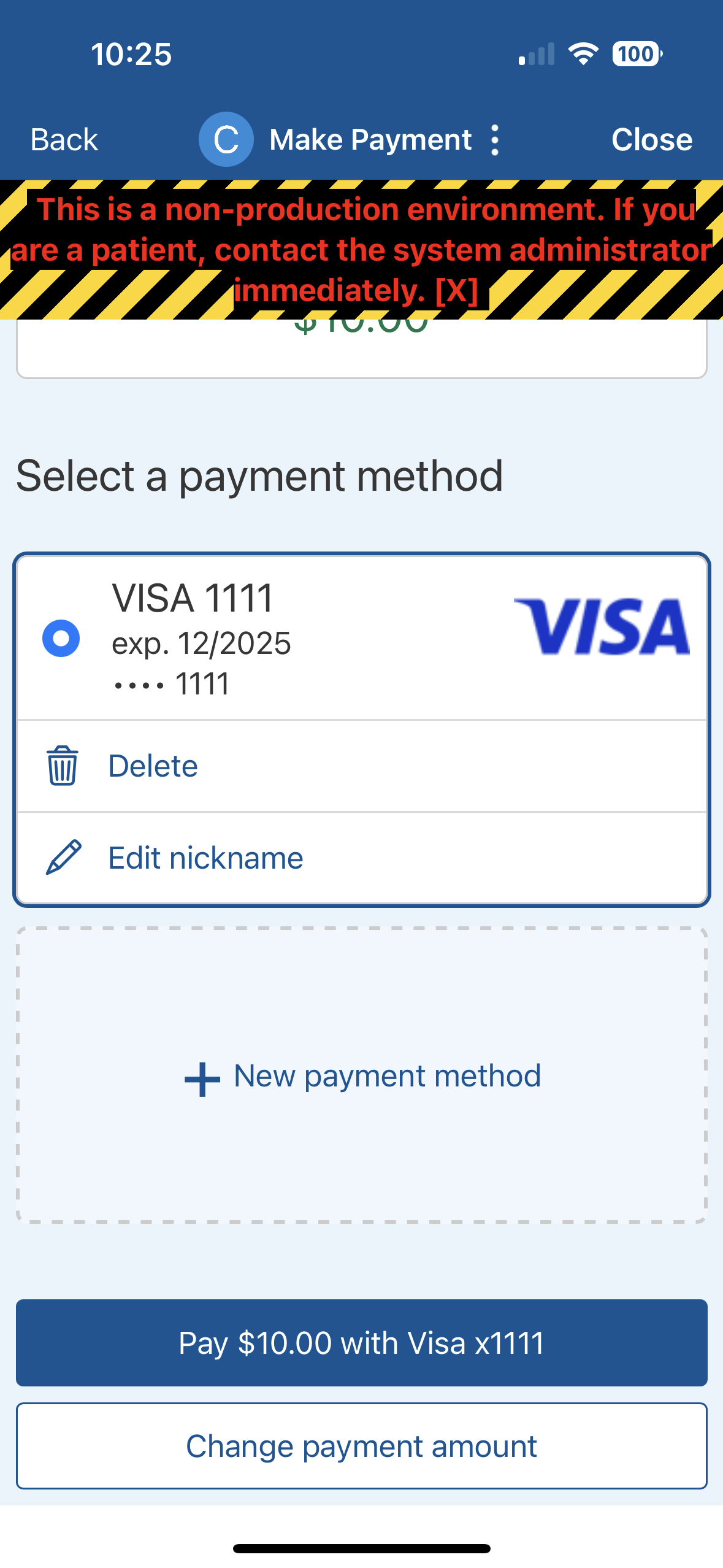
Choose Pay Option
If you have a card on file, but wish to pay with Apple Pay, select “New payment method”.
-
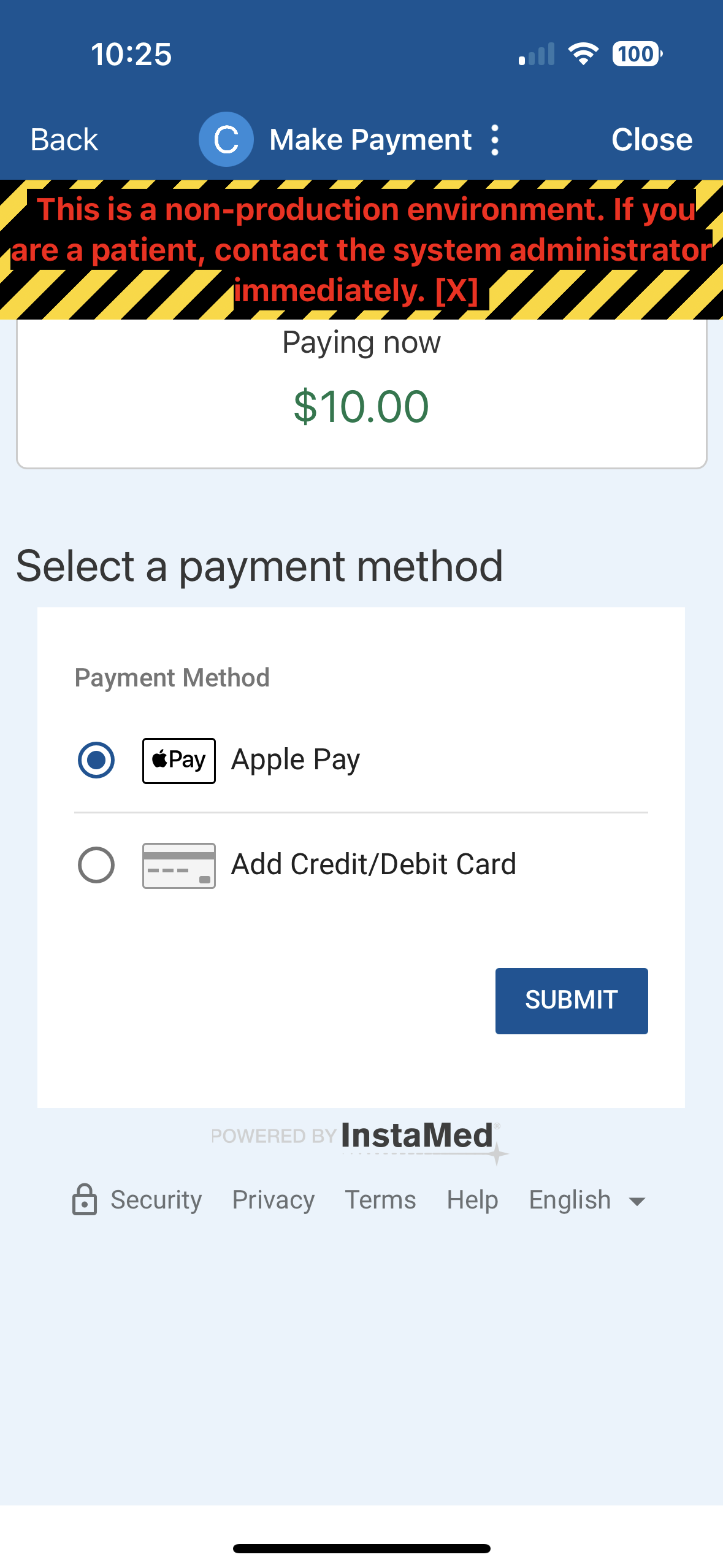
Select Apple Pay
Select the Apple Pay option and click “Submit”.
-
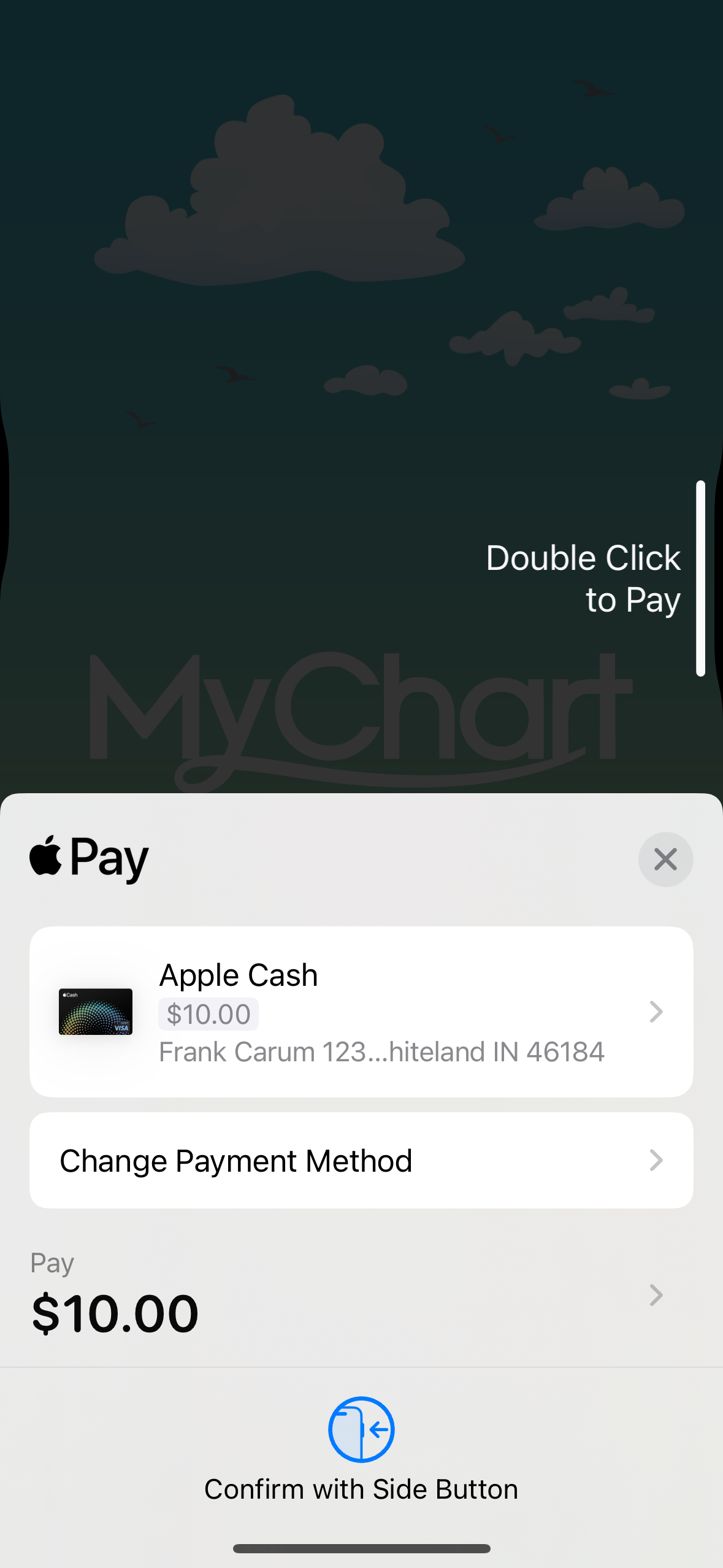
Confirm Apple Pay on Device
The native Apple Pay window will pop up to confirm information and validate your identity with Face ID or Touch ID.
-
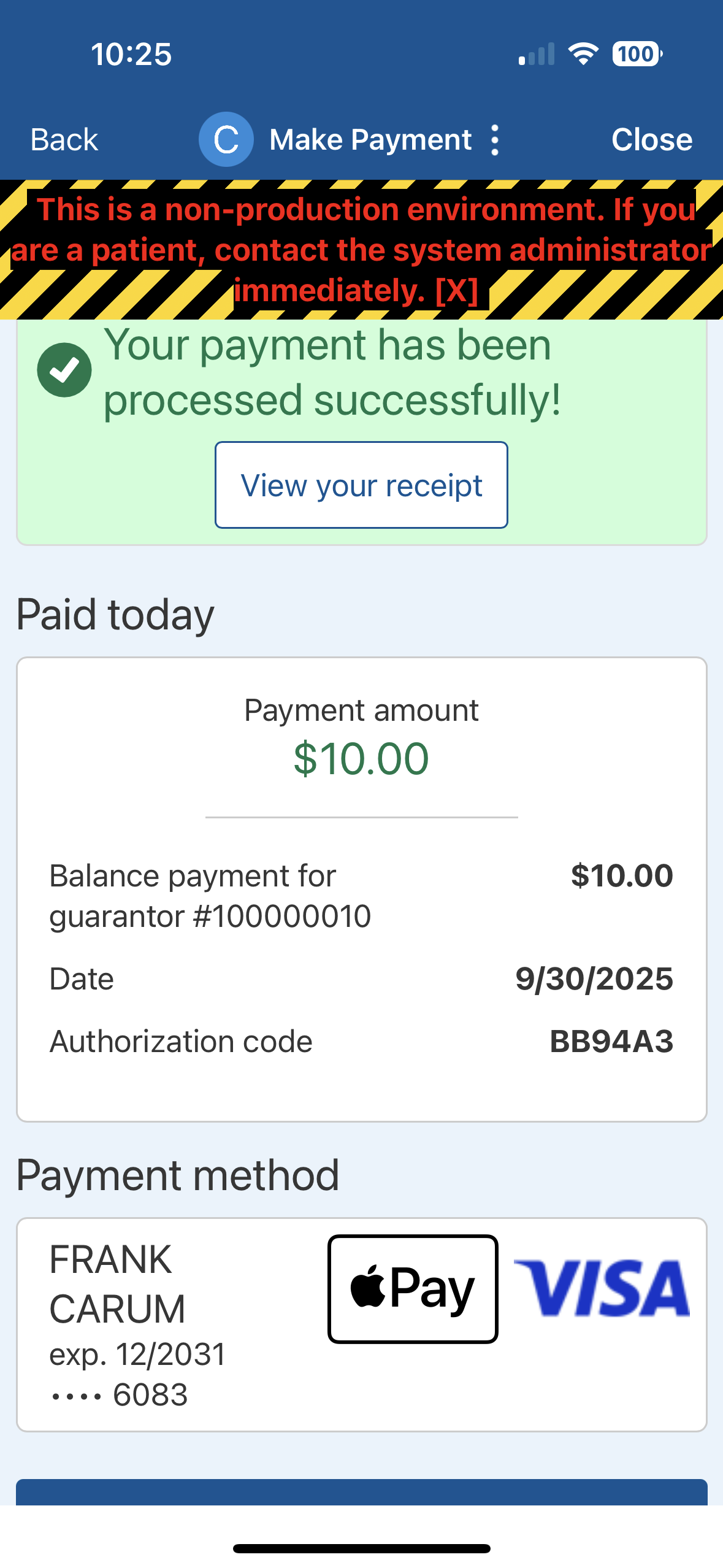
Receive Confirmation
You will see a confirmation on the screen that the payment was successful.
Franciscan Health and its affiliates are now able to accept Apple Pay as payment option in MyChart. Follow the steps to learn how.
NOTE: This option will only be visible on an Apple device with Apple Pay set up.
-
Log into MyChart
For more information and instructions on how to log in, please review Log Into MyChart
-
Go to Menu > Billing
Click on the Menu button (three lines at the top left). Search for Billing.
-
Select Pay Now
If you have a balance, select “Pay Now”
-
Select Amount
You can either chose to pay the full amount or enter a custom amount to pay.
-
Choose Pay Option
If you have a card on file, but wish to pay with Apple Pay, select “New payment method”.
-
Select Apple Pay
Select the Apple Pay option and click “Submit”.
-
Confirm Apple Pay on Device
The native Apple Pay window will pop up to confirm information and validate your identity with Face ID or Touch ID.
-
Receive Confirmation
You will see a confirmation on the screen that the payment was successful.